Audio Editing with Reaper
New York Gun Owners to NRA: ‘Sign Us Up’
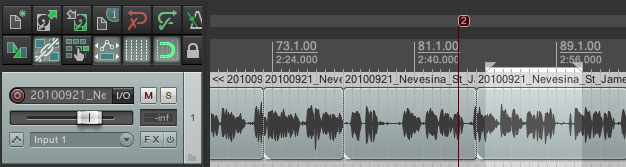
>> Audio Settings
Two factors that determine the quality of digital recordings are sample rate and sample format or size. Generally you will be working with a sample rate of 44 Hz and a sample format of 16 bits.
Sample Rate is important to audio files for two reasons. Sample Rate is the number of times per second you capture a snapshot of audio information during recording. Higher sample rates result in great audio detail, the same way you get smoother motion in video by capturing more frames per second. — Changing Audio Sample Rate in Audacity
Audio formats
For editing .wav or .aiffare best as they are not compressed as much as .mp3 files. However, once you are done editing, for posting online .mp3 is the best format.
>> GETTING STARTED
1) If you are EDITING your audio files, go to Reaper > Preferences. In the pull-down menu Audio Device, select “Built-In Output.”
2) If you are RECORDING, go to Reaper > Preferences. In the pull-down menu Audio Device, select “Built-In Microphone.”
3) If you are RECORDING using an external microphone, go to Reaper > Preferences. In the pull-down menu Audio Device, select “Built-In Input.”
4) If you are IMPORTING media files, drag and drop the audio file into the application or Insert > Media file.
>> MENU
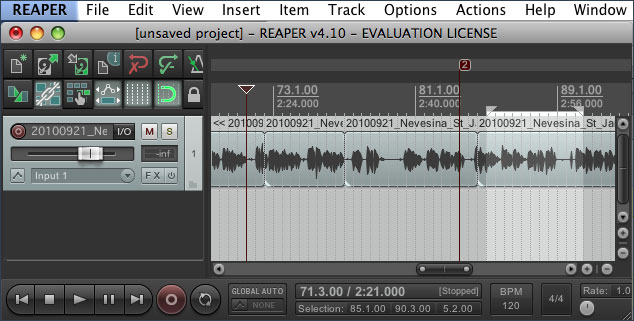
I. File
- New project
- Open project
- Save project
- Render: Use this to export an edited file
II. Edit
- Undo
- Redo
- Copy, cut and Paste
III. Insert
- Media file
- Marker (M), Shift M to name the marker
- Track (Cmd T) or double click in the left column
IV. Track
- Insert new track
- Duplicate track
>> CONTROLS

- Rewind to start of project (Or you can click W)
- Stop and rewind to where play last started. (Or Space bar)
- Play (Or Space bar)
- Pause (Stop at current position and move edit cursor)
- Go to end of project
- Record
>> TOP MENU BUTTONS
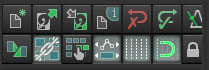
- New project (Cmd N)
- Open project (Cmd O)
- Save project (Cmd S)
- Project settings
- Undo (Cmd Z)
- Redo (Cmd shift Z)
- Metronome
- Auto cross fade (When you drag one clip into another this will automatically create a crossfade.)
- Group (Select, shift, “G”)
- Ripple (When enabled, this fills holes of edits by bringing clips together)
- Grid enable
- Snap enable
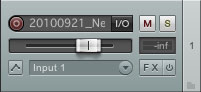
>> TRACK CONTROL PANEL
- Record in track
- Title (Double-click to change this)
- M for mute. (Click on this to silence the track.)
- S for solo. (Click on this to listen to this track only.)
- Volume (This controls the volume of the track.)
- Pan (This controls the pan.)
- Envelopes (You can use this to vary the volume and panning in your track.)
- FX sound effects
>> EDITING TIPS
- Zoom in and out +/- or use mouse wheel
- S creates a split or splice. Set splices at each end and then select the clip to delete.
- Or select the clip and then Shift S will select the clip which can be deleted using the “delete” key.
- Click one item, hold the shift key down and then press G to group them.
- Double arrow appears when on the edge of the audio, turns into the trim tool
- Place cursor in upper corner and pull in the direction of A fade. Right click and you get different fade forms.
- Command + Delete – Cuts a selected area
- Any Number – Go to marker point
- Up/Down – Compress or Expand track lengths
- Shift Up or Down – Increase or Decrease the peaks in your waveforms
- Shift Left or Right – Select portion of track
- F – Show/Hide Floating Toolbar
- Shift + 1 – Expand selected track, minimize all other tracks
- Option + M – Mute Selected Track
- Space – Play/Stop
- W – Return to start of project
>> RECORDING
1) If you are RECORDING, go to Reaper > Preferences. In the pull-down menu Audio Device, select “Built-In Microphone.” Or, if you are RECORDING using an external microphone, go to Reaper > Preferences. In the pull-down menu Audio Device, select “Built-In Input.”
2) Go to Track > New Track.
3) Click on the red button before the name of the track to “arm” the track, or let Reaper know that is where it should record the track.
4) Turn on your recording device.
5) Click on the record button in the controls.
6) You should see the recording wav file in the track. If you don’t, it is not working.
7) To listen to your recording, you must change the “input” to “output.” Go to Reaper > Preferences. In the pull-down menu Audio Device, select “Built-In Output.”
>> TUTORIALS
Reaper Tutorial 2 – Quickly Getting Started
Basic editing
http://www.youtube.com/watch?v=mJqf6B6jqLE&feature=related
ADDITIONAL EXERCISE: Gun Show Audio Elements