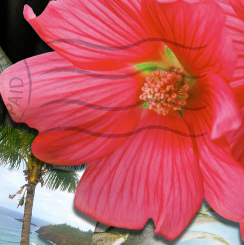
Photoshop – Layer Basics

Working with layers is analogous to placing portions of a drawing on clear sheets or film, such as those viewed by an overhead projector. Sheets can be edited or rearranged without affecting the others.
1) Click on the following two zip files and open the PSD files in photoshop
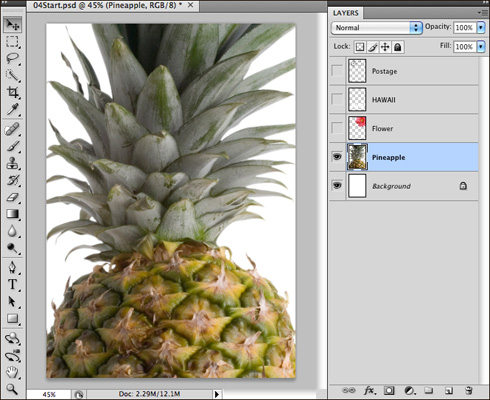
2) If the layers panel is not showing, open it as follows Windows > Layers
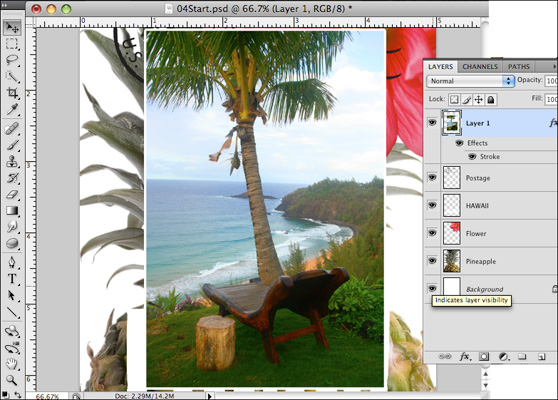
3) The layers panel lists all the layers in an image, with layer names and thumbnails. You can use the layers panel to hide, view, reposition, delete, rename or merge layers.
You should see all five layers for the working file. Select the background layer to make it active. The lock indicates that the layer is protected. The eye indicates that it is visible.
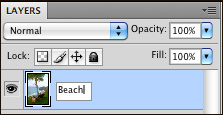
3) Double click on Beach.psd. This consists of only one layer — it does not have a white or colored background. Click on the layer 1 and rename it Beach.
4) Click the arrange document button in the application bar so that the two psd files are side by side.
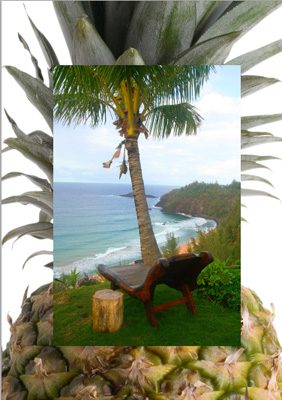
5) Select the move tool and drag the beach image on to the working file. The beach layer now appears directly above the background layer. Close beach.psd without saving changes.
Viewing individual layers
Now the working file has six layers, some visible, some hidden. Click the eye icon next to the pineapple layer to hide the image. You can hide or show a layer by clicking on the icon or in the Show/Hide column. Click again to show it.
Adding a border to a layer
1) Select the Beach layer by clicking on it. To hide the other layers, press Alt (windows) or Option (Mac) as you click the eye icon next to the Beach layer.
2) Choose Layer > Layer Style > Stroke. The layer dialog box opens. Specify the settings: size 5px, position inside, blend mode normal, opacity 100% and color white. Click OK.
Rearranging layers
The order of layers is called stacking order. You can change the order to make certain parts of the image appear in front or behind other layers.
1) Make the remaining layers visible by clicking on the Show/Hide visibility column. Select the beach layer and drag it up between the pineapple and flower layer.
Changing the opacity of a layer
You can reduce the opacity of a layer to let others show through.
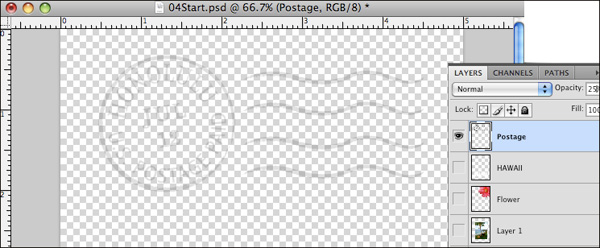
1) Select the postage layer and click on the arrow next to opacity. Drag the slider to 25%. Save.
Duplicating a layer and changing the blending mode
Blending modes impact the way that images in one layer blend with layers underneath. First you will increase the intensity of the pineapple and then change the blending mode on the postage layer.
1) Hide all layers except for the pineapple. Right-click or control-click on the pineapple layer, select duplicate layer. A pineapple copy layer appears above the pineapple. Select it and then choose “overlay” in the blending mode pulldown.
2) Select the postage layer and choose multiply from the blending modes menu, making it a little stronger. Save.
Resizing and rotating layers
1) Make the beach layer visible.
2) Choose Edit > Free Transform.
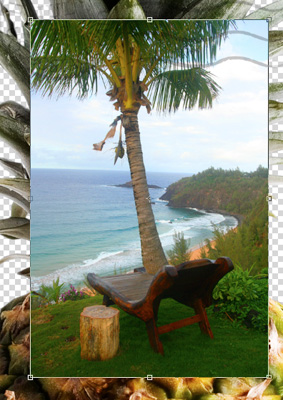
3) Resize the image 50%, holding down the shift key.

4) Drag one corner 15 degrees.
5) Click the “commit transform” in the options bar.
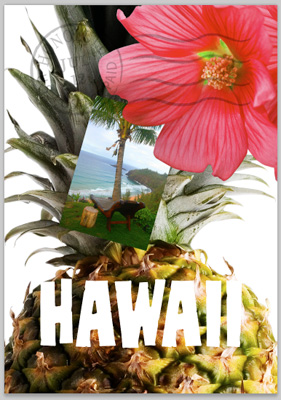
6) Make the flower visible and drag the beach photo so that its corner is tucked beneath.
Using a filter to create artwork
1) Select background layer, followed by clicking on the New Layer button. Name it clouds.
2) In the Tools panel, click on the foreground color and select a sky blue color. R 48, G 138, B 174
3) Select Filter > Render > Clouds.
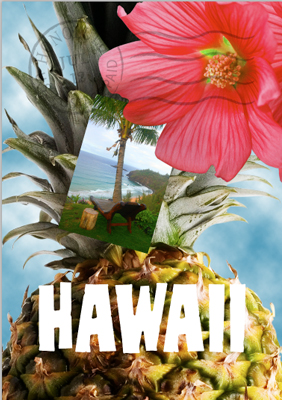
Adding text
1) Make the Hawaii layer visible. Choose Select > Deselect layers so that no layers are selected.
2) Click on foreground color swatch and select a grassy green color. In the tools panel, select the horizontal type tool. Then choose Window>Character.
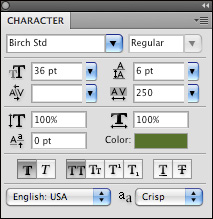
4) Choose the following: Birch Std, regular font style, 36 points font size, crisp from anti-aliasing menu, 250 tracking value, all caps and faux bold.
5) Click right below Hawaii and type Island Paradise. Click the commit edits button. Position the text using the move tool.
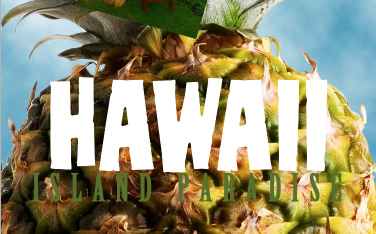
Applying a gradient to a layer
1) Select the Hawaii layer. Right click or control click the thumbnail in the Hawaii layer and chose select pixels.
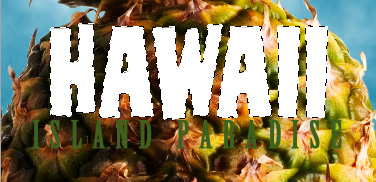
2) In the tools panel, select the gradient tool (under the paint can). Select a bright orange color for the foreground. In the options bar, make sure the linear gradient is selected. In the options bar, click the arrow next to the gradient editor to open up the gradient picker and chose the foreground to background swatch.


3) Drag the gradient tool from the bottom of the Hawaii text to the top (hold down Shift for a straight line.) Choose Select > Deselect. Save.
Applying a layer style
You can enhance a layer by adding a shadow, stroke, or satin sheen. You can always hide a layer style by clicking on the eye icon. You can also edit the style or delete it without impacting the original layer.
1) Select the Island Paradise layer. Choose Layer> Layer style> Drop Shadow.
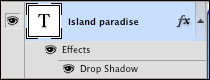
2) In the layer style dialog box, Blend Mode multiply, Opacity 75%, Angle 78 degrees, distance 5px, spread 30%, size 10px.
3) Press Alt (Windows) or Option (Mac) and drag the effects line down to the Hawaii layer.
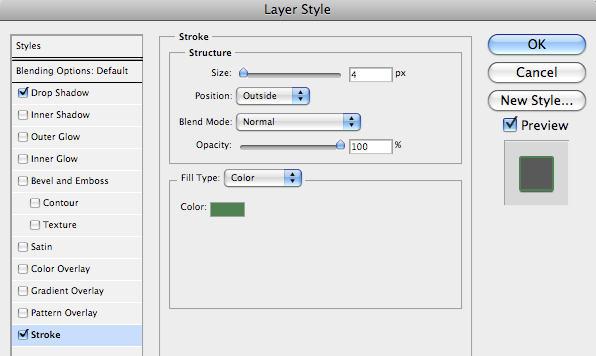
4) Select the Hawaii layer, click the fx button to add a layer style. Choose stroke from the menu. Settings should read: size 4px, position outside, blend mode normal, opacity 100%, color green. Click OK.
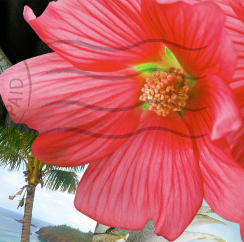
5) Select the flower layer. Choose Layer > Layer Style > Drop Shadow. Setting should read: Opacity 60%, Distance 13px, Spread 9%, Blend mode multiply. Now, select the Satin effect on the left. Select “invert” on the Contour box. Settings: color fuchsia, opacity 20%, distance 22px.
Before:
After: